
Advertisement
Google Search Console — How to Add Your Website and Get Free Traffic
Every website owner needs Google Search Console. It is free, powerful, and tells you exactly how Google sees your site. Here is how to set it up and use it to get more free traffic.
What is Google Search Console
Google Search Console (GSC) is a free tool from Google that shows you:
- Which keywords people use to find your site
- How many times your site appears in Google search results
- Which pages get the most clicks
- Any errors Google finds on your site
- How fast your pages load on mobile
In short: it tells you how your site is performing on Google and what to fix.
Step 1 — Add Your Website
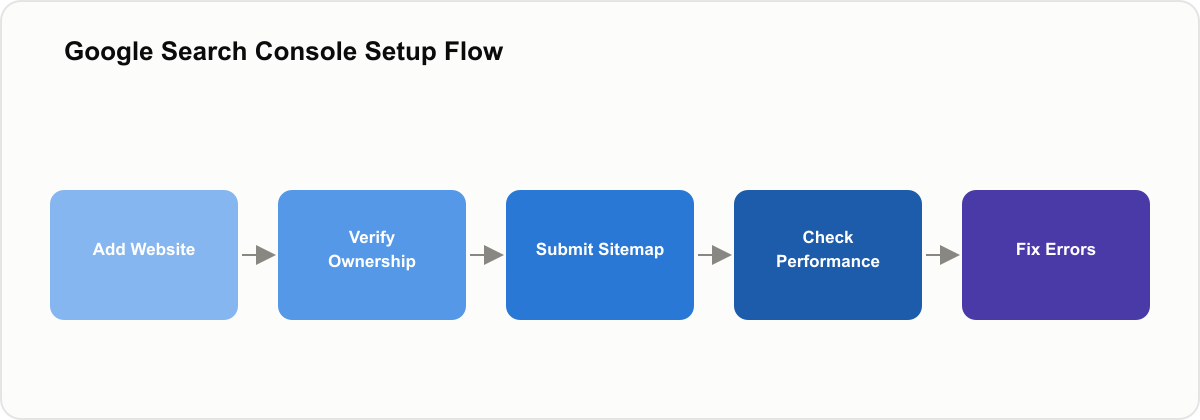
Go to search.google.com/search-console and click Add Property. You have two options: choose Domain (recommended) and type your domain name without https:// — for example, techpulzo.in — or choose URL prefix and type the full URL with https://, for example https://techpulzo.in.
Step 2 — Verify Ownership
Google needs to confirm you own the site. The easiest method is the HTML tag: Google gives you a meta tag like meta name="google-site-verification" content="XXXXX", you add it to your website's head section, then click Verify. Alternatively, if you use a custom domain, you can add a TXT record to your domain's DNS settings — Google verifies within 24 hours.
Step 3 — Submit Your Sitemap
A sitemap tells Google all the pages on your site. In Search Console, click Sitemaps in the left menu, enter sitemap.xml, and click Submit. Most websites automatically generate a sitemap at yoursite.com/sitemap.xml — this helps Google find and index all your pages faster.
Step 4 — Check Your Performance
After a week or two, go to Performance in Search Console. You will see total clicks (how many people clicked your site from Google), total impressions (how many times your site appeared in results), average CTR (click-through rate), and average position (where you rank on average). This data is gold — it shows you exactly which pages are working and which need improvement.
Step 5 — Fix Errors
Go to Pages in Search Console. You will see indexed pages (pages Google has found and stored) and not-indexed pages (pages Google cannot find or has issues with). Common issues and fixes:
- Crawled but not indexed: Improve the content quality
- Redirect error: Fix broken redirects in your website settings
- Not found (404): Remove the URL or redirect it to a working page
What to Do Every Week
Monday: check Performance — which keywords are growing? Wednesday: check Pages — any new indexing errors? Friday: check Core Web Vitals — is your site fast enough? Ten minutes per week is enough to stay on top of your SEO.
Key Metrics to Watch
If impressions are growing but clicks stay flat, your titles and descriptions need improvement — make them more compelling. If your position is improving (the number getting smaller), your SEO is working — keep publishing quality content. If pages start getting deindexed, something is wrong — check for duplicate content or thin content.
How Long Until You See Results
Week 1-2: Google crawls and indexes your pages. Month 1: first impressions appear for your keywords. Month 2-3: rankings start to improve for low-competition keywords. Month 4-6: significant organic traffic if you publish consistently. SEO is slow, but the traffic it brings is free and compounds over time.
Conclusion
Google Search Console is the most important free tool for any website owner. Set it up today, submit your sitemap, and check it weekly — the data it gives you is more valuable than any paid SEO tool.
Frequently Asked Questions
Advertisement
Was this article helpful?
Advertisement
Comments
No comments yet. Be the first to share your thoughts!
Related Posts

How to Learn Python in 30 Days — Complete Beginner Roadmap
A complete day-by-day roadmap to learn Python from scratch in 30 days. Free resources, projects, and tips to get job-ready fast.

10 Best Free Websites to Learn Coding in 2026
Discover the 10 best free websites to learn coding in 2024. From HTML to Python to data science — all completely free with certificates.

SQL Basics: The Queries Every Beginner Should Actually Know
Ten queries that cover most of what you'll use day to day, with runnable examples
Ten SQL queries that cover most day-to-day database work, with runnable examples — SELECT, filtering, joins, aggregation, and the mistakes that trip up beginners.

Git and GitHub for Complete Beginners: A Step-by-Step Guide
From your first commit to your first pull request, without the jargon
A practical walkthrough of Git and GitHub — what problem version control solves, the five commands you'll use daily, and how to set up your first repository.